iOS Steps guide
Delta Executor iOS Performance — Step-by-Step Guide
·Delta Executor
Use this guide after Delta is installed on iPhone or iPad. These settings help Background App Refresh and battery modes so Delta injects more smoothly.
For install steps, see iOS download or Direct Install.
Before You Start
- Delta is already on your Home Screen
- You can open Settings
- You are not using Low Power Mode for gaming sessions
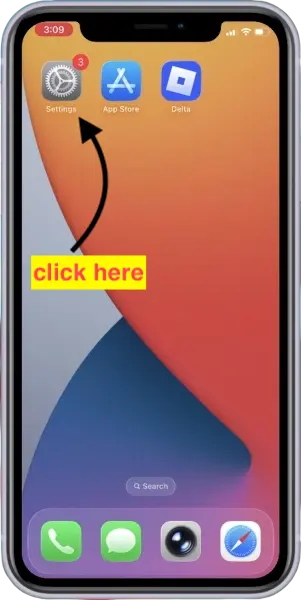
Step 1 — Open Settings
Tap the Settings app on your Home Screen.
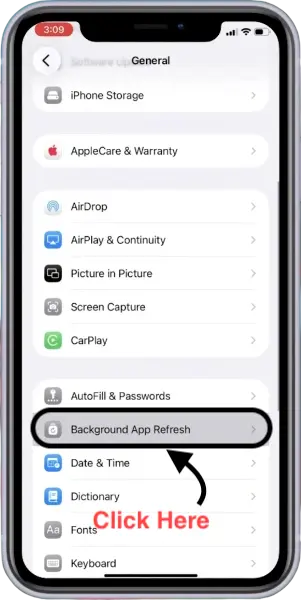
Step 2 — Open Background App Refresh
Go to General, then tap Background App Refresh.
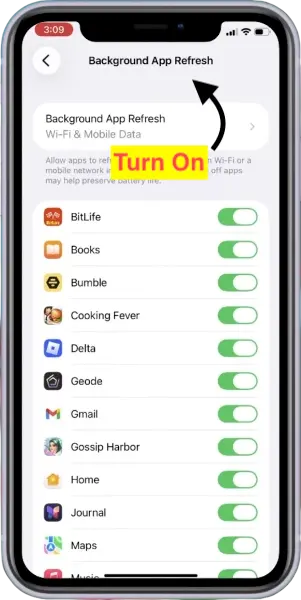
Step 3 — Turn Background App Refresh on
Tap the top Background App Refresh row. Keep Delta allowed in the app list when it appears.
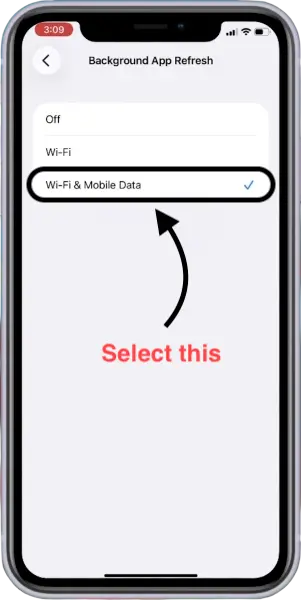
Step 4 — Choose Wi‑Fi & Mobile Data
Select Wi‑Fi & Mobile Data so Delta can refresh on cellular as well as Wi‑Fi.
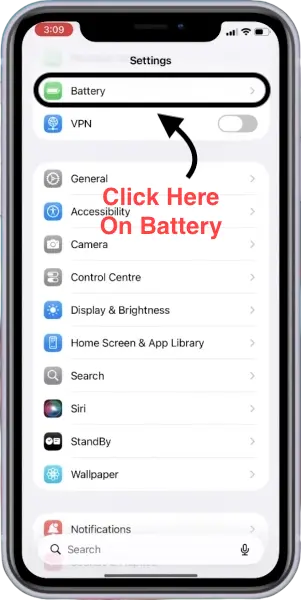
Step 5 — Open Battery
Return to the main Settings list and tap Battery.
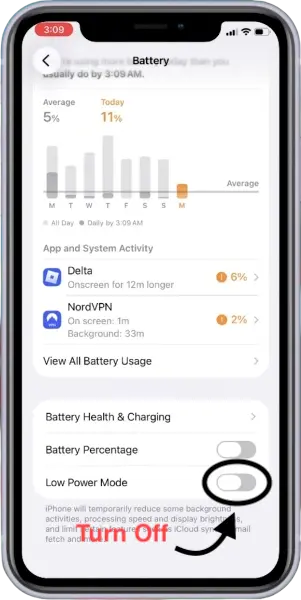
Step 6 — Turn Low Power Mode off
Set Low Power Mode to Off. Low Power Mode can throttle background work and hurt script performance.
Done
Return to Delta and Roblox and try inject again. If the app itself is missing or untrusted, use Direct Install. For the daily unlock flow, open the key step-by-step post.